Press pause
Keys off.
Cloth on.
Temporarily block key presses while you wipe your keyboard.
A little Mac menu bar utility
Lock your keyboard while you wipe it down. Your mouse and trackpad keep working, so you can unlock from the menu bar whenever you’re ready.
Apple Silicon · macOS 14+
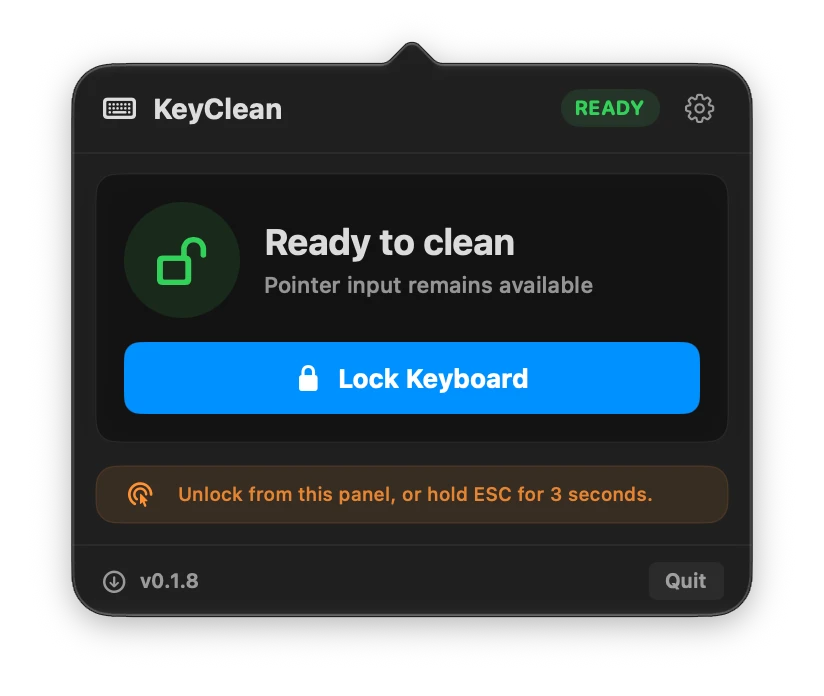
Just what you need.
Press pause
Temporarily block key presses while you wipe your keyboard.
Stay in control
Your mouse and trackpad keep working. Unlock right from the panel.
A simple way back
Press and hold Escape for three seconds to unlock from the keyboard.
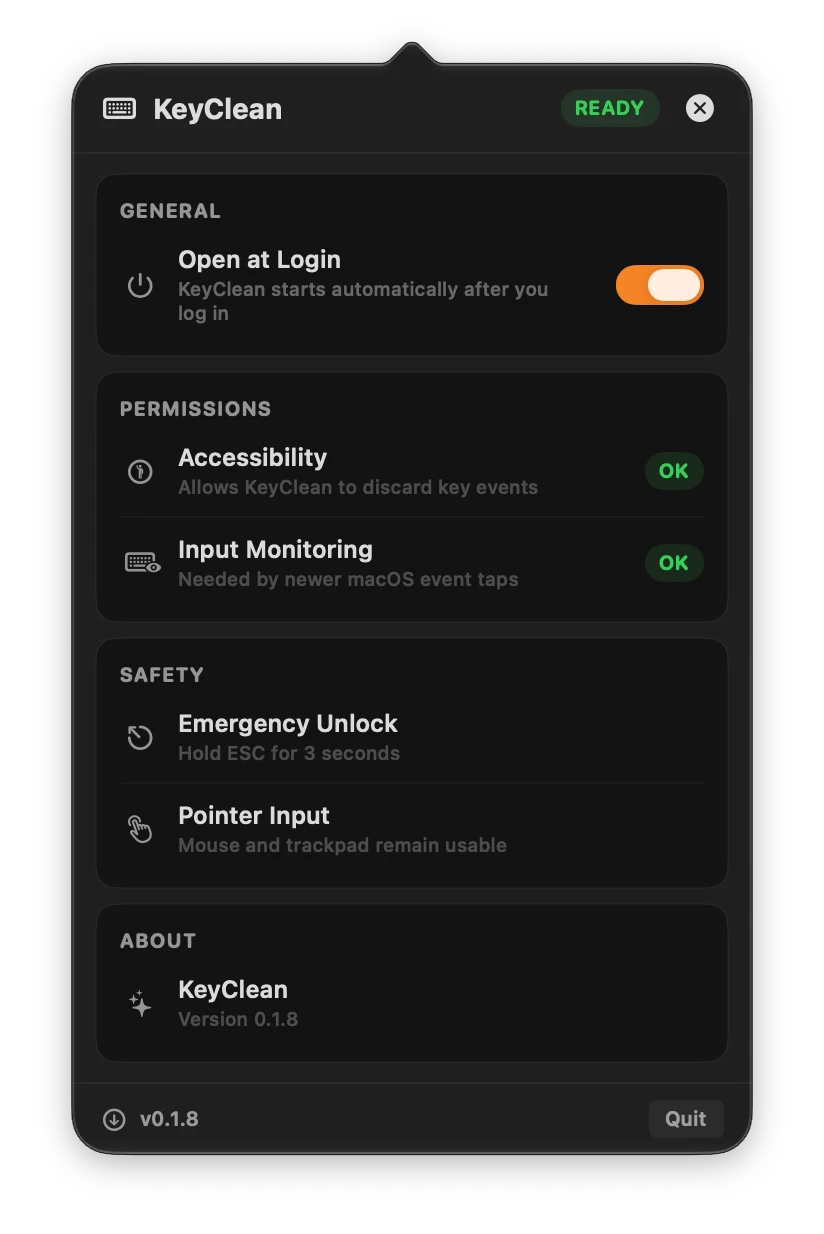
Quietly, in your menu bar.
Set KeyClean to open at login, check your permissions, and get back to your day. Everything stays close, in one little menu-bar panel.
Up and running
Download the latest DMG, drag KeyClean into Applications, and open it from your menu bar.
Grant Accessibility and Input Monitoring in System Settings. Reopen KeyClean if macOS needs to refresh its permissions.
Click Lock Keyboard, wipe your keys, then unlock from the panel or hold Escape for three seconds.
A few useful answers
The current download is for Apple Silicon Macs running macOS 14 or later. Allow Accessibility and Input Monitoring before locking the keyboard.
Click Unlock Keyboard in the menu-bar panel, or press and hold Escape for three seconds. Your mouse and trackpad stay available while the keyboard is locked.
Accessibility lets KeyClean discard key presses while locked. Input Monitoring is also needed by newer macOS event taps. You can check both permissions in KeyClean’s settings.
In your Mac’s menu bar, with no Dock icon or separate app window. Enable Open at Login in settings if you’d like it ready whenever you sign in.

Apple Silicon · macOS 14+ · Latest stable release